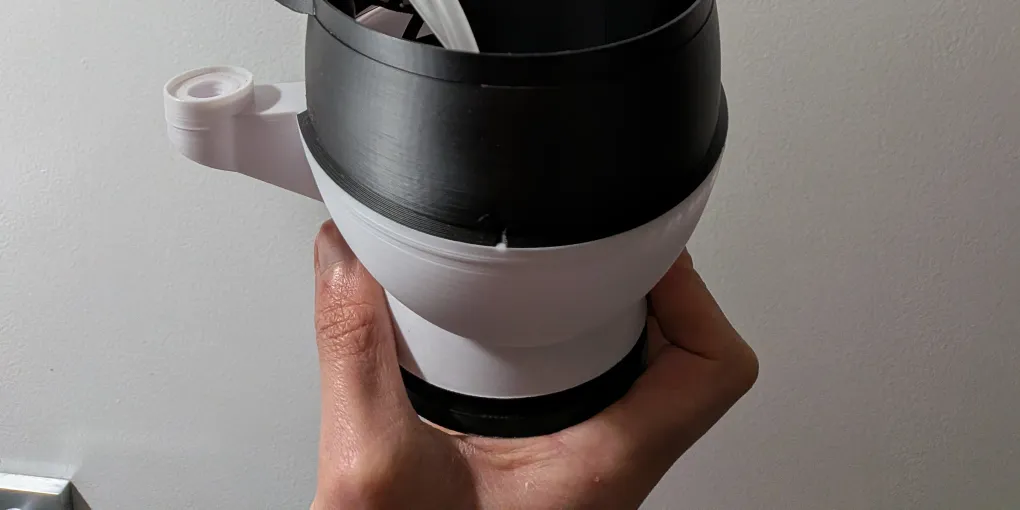
Troubleshooting Your ToadTurret: Common Issues and Fixes
Most of the time, ToadTurret runs without any fuss. You set it up, put it outside, and it does its thing. But every now and then something does not quite work the way you expect. This guide covers the most common issues we have seen and how to sort them out.
If your issue is not listed here, get in touch. We are always happy to help.
Device Not Showing Up in Bluetooth Scan
This is the most common setup question we get. You open the app, tap “Add Device”, and nothing appears.
Things to check:
- Ensure that the device’s wifi is on the button on the side of the device can be held in for 1.5s to turn bluetooth and wifi on if it has powered down. It will flash every 0.5s and then rapidly once started.
- Make sure Bluetooth is turned on on your phone or computer. Sounds obvious, but it catches everyone at least once.
- Move closer to the device. Bluetooth range is limited, especially outdoors. Try standing within a couple of metres of your ToadTurret.
- Power cycle the device. Unplug it, wait a few seconds, and plug it back in. The device needs a moment to start up and begin advertising over Bluetooth.
- Check that no other device is already connected. Only one phone or computer can be connected via Bluetooth at a time. If someone else has already connected, the device will not show up for you.
- Try the app. If the web app is not finding the device, try the android or apple app. The bluetooth is more reliable on the mobile apps.
WiFi Connection Issues
”My device cannot see my WiFi network”
The most common cause is a 5GHz network. ToadTurret only supports 2.4GHz WiFi. Most modern routers broadcast both 2.4GHz and 5GHz networks, and they sometimes have different names (like “MyWiFi” and “MyWiFi_5G”). Make sure you are selecting the 2.4GHz one.
If your router combines both into a single network name, check your router settings. Some routers have an option to split them into separate names, which makes it easier to connect 2.4GHz-only devices.
Our 2.4GHz WiFi setup guide explains how to find your router details, check that 2.4GHz is enabled, and separate the network names if needed.
”The device connected to WiFi but then went offline”
- Check your router. After storms or power outages, your router might have restarted and the device has not reconnected yet. Give it a few minutes. ToadTurret will automatically try to reconnect.
- Signal strength. If the device is far from your router, the WiFi signal might be weak or intermittent. Try moving the device closer, or consider a WiFi extender if you need coverage further into the yard.
Low Detection Rates
If your ToadTurret is running but not picking up many toads, positioning is usually the answer.
- Camera view. Make sure the camera has a clear, unobstructed view of the ground in front of it. Tall grass, garden clutter, or overhanging branches can block the view and prevent detections.
- Location. Toads are drawn to moisture and food. The best spots are near garden taps, irrigation lines, and outdoor lights (which attract insects). If the device is in a dry, dark corner of the yard, it might just not be where the toads are.
- Try a different spot. Sometimes just moving the device a metre or two makes a surprising difference. Give each position a few nights before deciding.
- Seasonal factors. Toad activity drops significantly in cooler weather. If detections have dropped off during winter, that is completely normal. They will pick up again when it warms up.
- Check the confidence threshold. If your confidence threshold is set very high, the device might be seeing toads but deciding it is not confident enough to act. You can check and adjust this in the device settings via the app or web dashboard.
Camera Lens Issues
Cobwebs and dust
Cobwebs are inevitable. Spiders love the warmth of electronics. If your detection images start looking hazy or blurry, a cobweb on the lens is the most likely cause.
Fix: A quick wipe with a soft cloth. Check the lens occasionally, especially during spider season.
Fogging and condensation
On humid nights (which is exactly when toads are most active), moisture can build up on the lens. This usually clears on its own as the device warms up slightly from operation, but if it is persistent:
- Make sure the device has some airflow around it
- Avoid placing it in spots where moisture pools or drips onto it
Overheating
ToadTurret is designed to handle Queensland weather, but direct sun on a hot day can push internal temperatures too high.
Signs of overheating:
- Device goes offline during the hottest part of the day
- Detection images appear washed out or distorted
- The device restarts unexpectedly
Prevention:
- Find shade. This is the single most important thing. A spot that gets morning shade or is under a tree canopy is ideal. Avoiding direct sun matters the most.
- Avoid black surfaces. If the device is sitting on a dark-coloured surface (black plastic, dark timber, bitumen, etc.), it will absorb more heat. A lighter surface helps.
- Check ventilation. Make sure there is some airflow around the device.
The device operates at night when toads are active, so overheating during the day does not affect toad detection directly. But prolonged heat exposure can damage components and reduce the lifespan of the device.
False Positives
The AI is good, but it is not perfect. You might occasionally see a detection image that is clearly not a toad: a large beetle, a leaf, a shadow, or something else entirely.
What to do:
- Check the confidence score. False positives usually have lower confidence levels. If you are seeing a lot of them, try increasing the minimum confidence threshold in your device settings.
- Report it. You can report misidentifications directly from the app or web dashboard. Reported images are reviewed by our team and fed back into the AI training data, which helps improve future model versions for everyone.
- Adjust positioning. If the false positives are caused by objects in the frame (garden hose, shoes left outside, a particular shadow), repositioning the device slightly can help.
False positives are a normal part of any AI system. They tend to decrease over time as the model improves.
Spray Issues
”The device detects toads but does not spray”
- Check the reservoir. The most common cause is simply running out of spray solution. Top it up and make sure the tube is submerged.
- Check spray mode. The device might be set to alert-only mode, which detects and reports but does not spray. Check your device settings in the app or web dashboard.
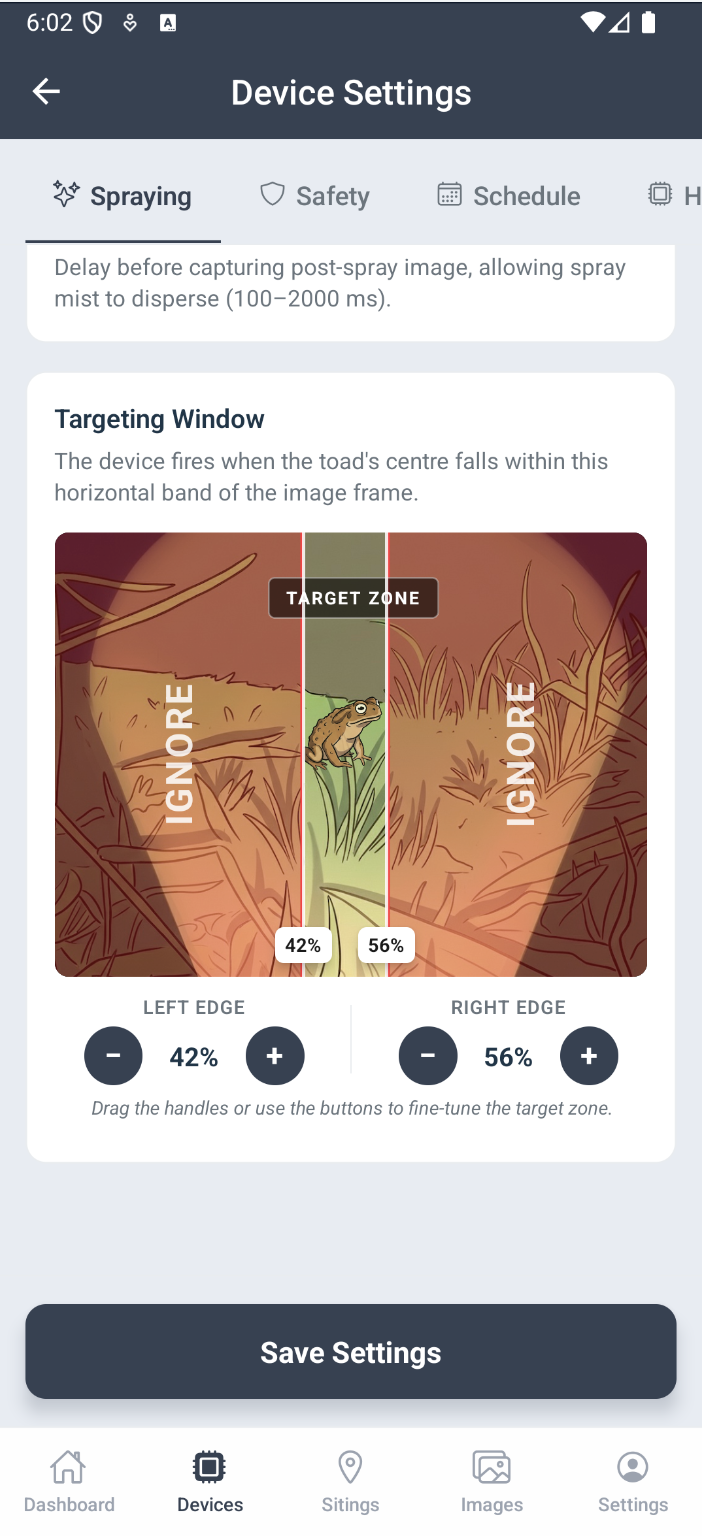
- Check the targeting window. If the targeting window is set very narrow, the device might be detecting toads outside the spray zone. Review the targeting window settings and adjust if needed.
”The spray is weak or inconsistent”
- Low reservoir. When the reservoir is nearly empty, the pump can struggle to draw solution. Top it up.
- Pump wear. If you are using concentrated solutions, the pump may wear faster. Diluting your spray solution significantly helps extend pump life. Check the ToadOps store for replacement pumps.
- Air in the lines. After refilling the reservoir, it might take a few spray cycles for air to work its way out of the tubing.
Device Shows Offline on Dashboard
If your device appears offline in the app or web dashboard:
- Check power. Make sure the device is plugged in and the power supply is working. Remember, ToadTurret needs a 12V 3A supply via a USB-C PD charger and PD trigger cable.
- Check WiFi. If your WiFi has gone down (router restart, power outage), the device will show as offline until it reconnects. The device will try to reconnect automatically.
- Give it time. After a power or WiFi interruption, the device can take a few minutes to come back online and re-register with the dashboard.
- The device still works offline. Even if the dashboard shows it as offline, the core detection and spray functions continue to work independently. You just will not see the images or activity until the connection is restored.
Software Updates
Software updates are delivered automatically when the device is connected to WiFi. You do not need to do anything. If you want to confirm your device is running the latest version, check the device status section in the app or web dashboard.
Still Stuck?
If none of the above solves your issue, get in touch. We are a small team and we respond to everything. Include as much detail as you can about what is happening and we will help you sort it out.