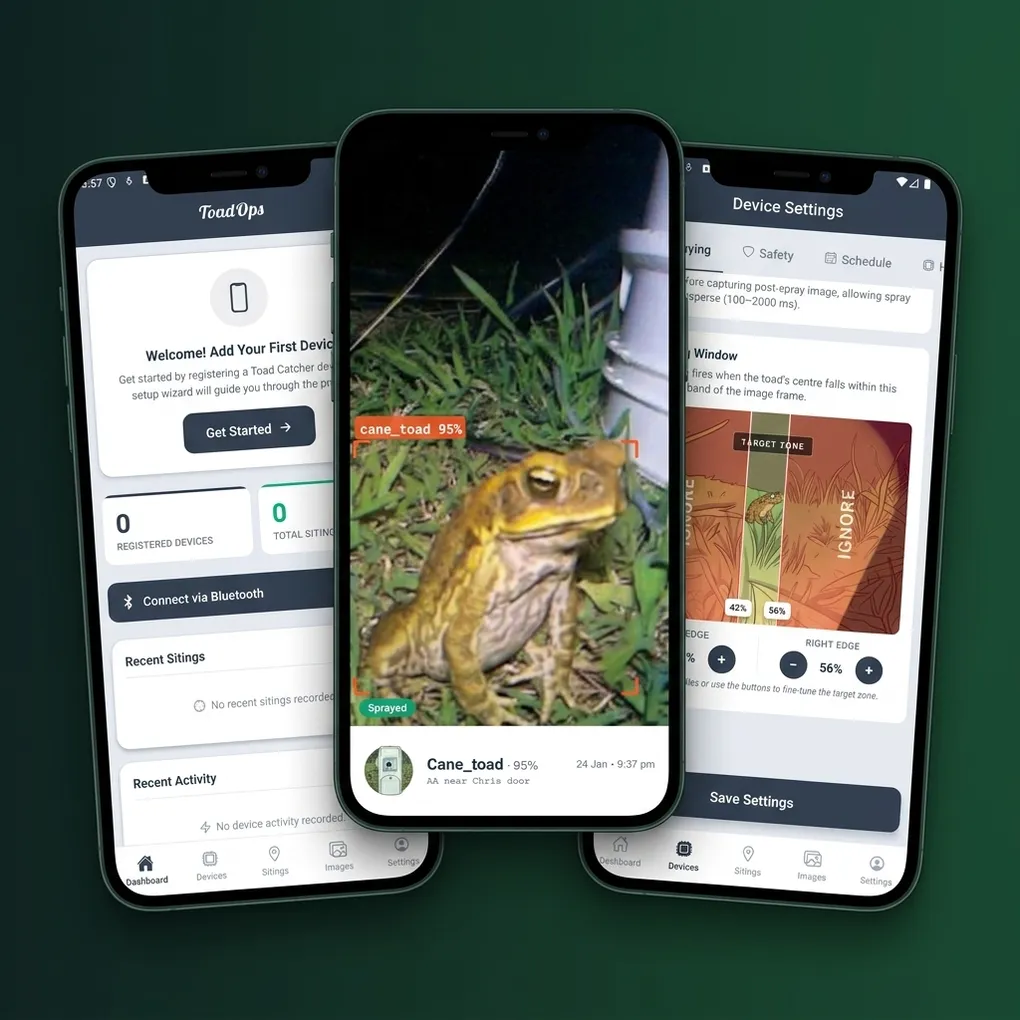
The ToadOps App and Dashboard: A Visual Tour
Whether you use the ToadOps mobile app through our internal testing program or the web interface at app.toadops.com.au, the dashboard is where you see everything your ToadTurret has been up to. This guide walks you through the key screens so you know what to expect.
Getting In
You can access ToadOps two ways:
- The mobile app on iPhone or Android, currently available through our internal testing program.
- The web interface at app.toadops.com.au. Works on any device with Chrome, including desktops and laptops.
Both give you the same features. Use whichever you prefer. The web interface also supports Bluetooth for device setup if you are using a Bluetooth-enabled computer.
The Dashboard
When you open ToadOps, you land on the dashboard. This is your home screen and gives you an at-a-glance view of your devices.
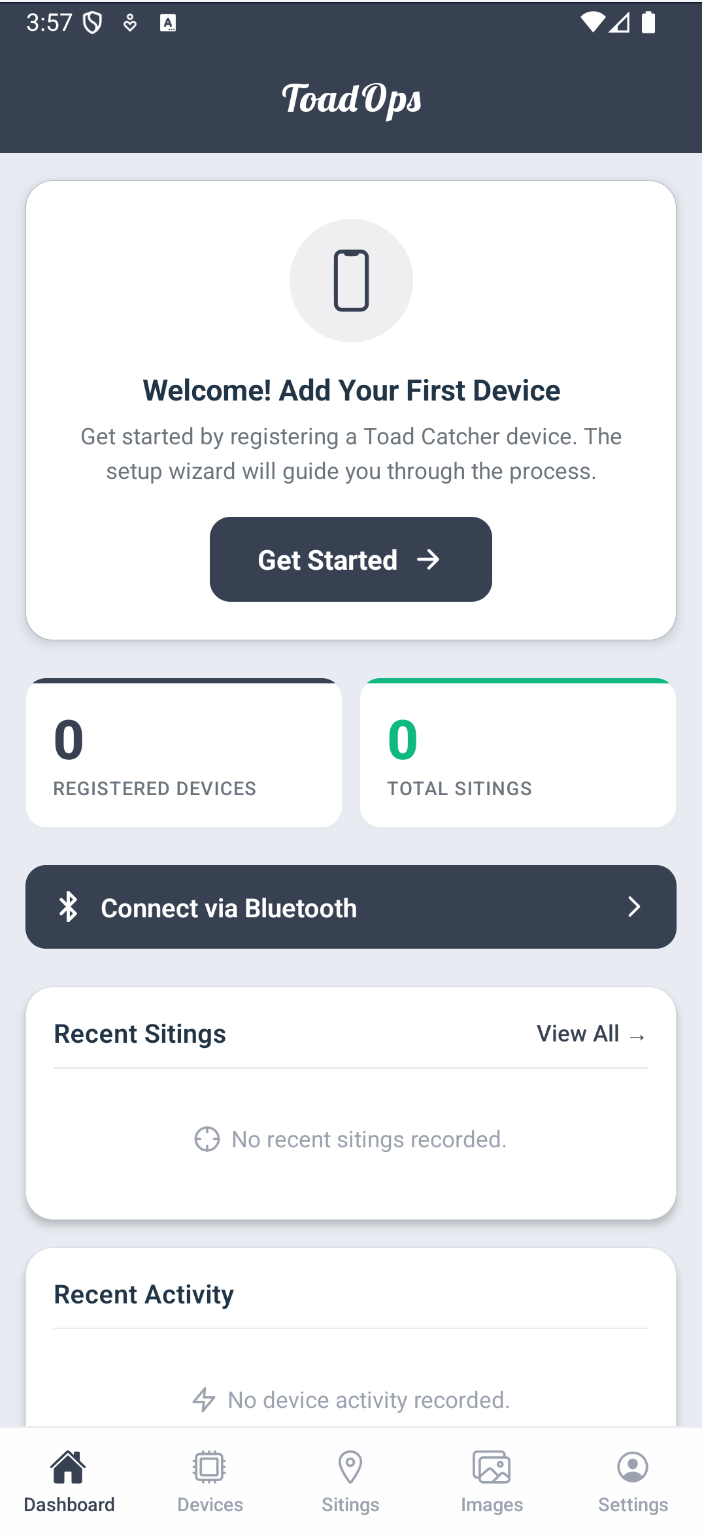
From here you can see:
- Registered devices and how many you have set up
- Total sightings across all your devices
- Connect via Bluetooth to set up a new device or manage an existing one
- Recent Sightings with the latest detection images
- Recent Activity showing system events like detections, safety pauses, and connection changes
The bottom tab bar gives you quick access to the main sections: Dashboard, Devices, Sightings, Images, and Settings.
Adding a Device
Tapping “Add Device” or the “Get Started” button launches the setup wizard. The wizard walks you through every step, from registering your device to connecting via Bluetooth and configuring WiFi.
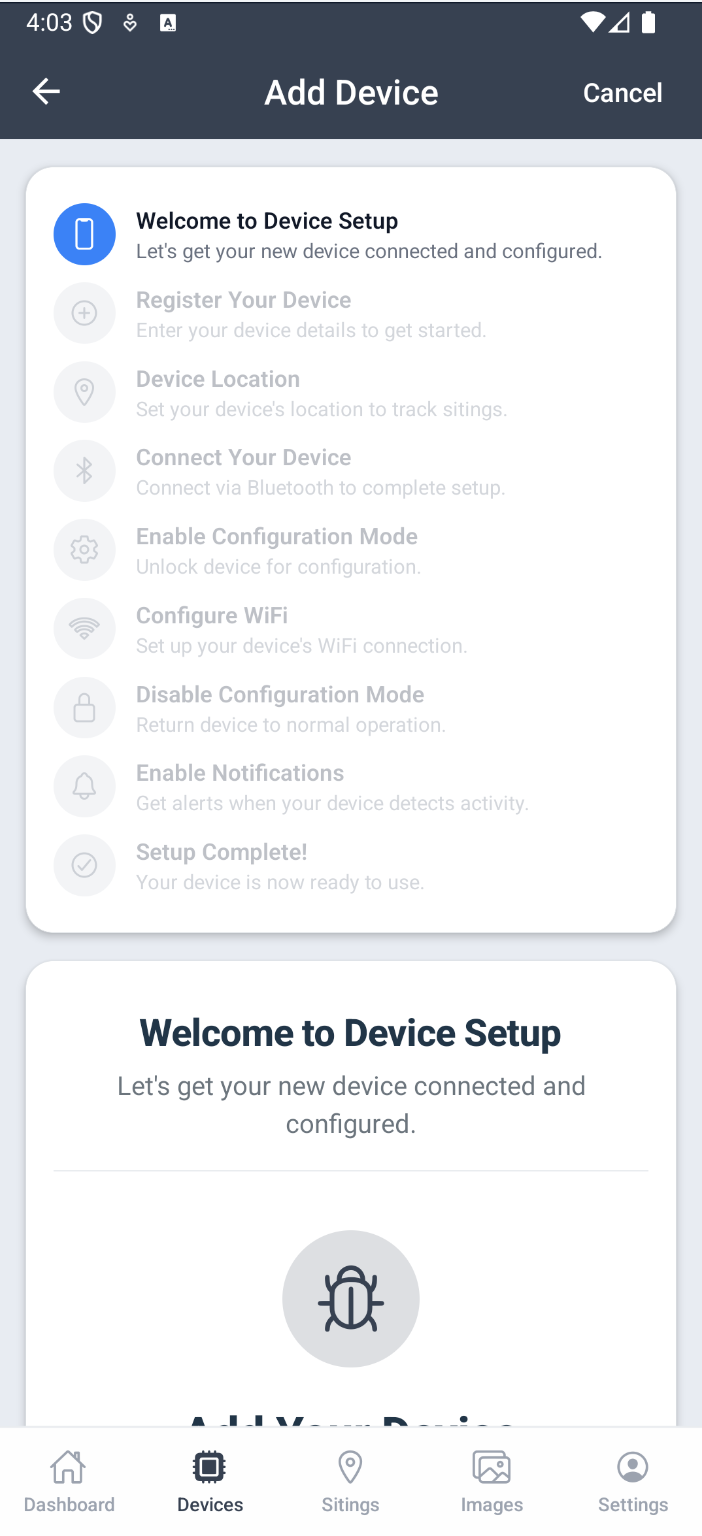
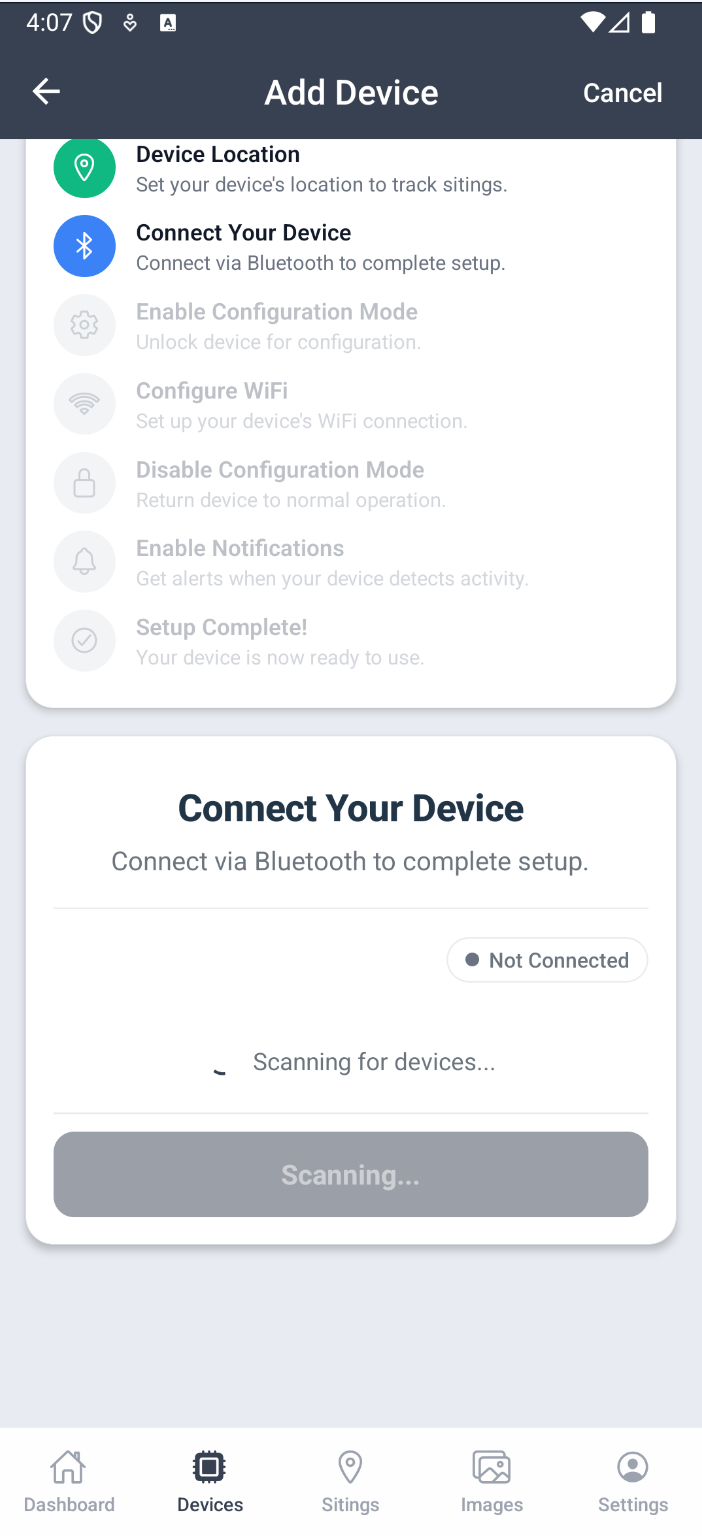
The setup steps include:
- Register Your Device with a name and location
- Device Location to help you track where sightings are coming from
- Connect Your Device via Bluetooth
- Enable Configuration Mode to unlock device settings
- Configure WiFi for cloud features, image uploads, and remote monitoring
- Disable Configuration Mode to return the device to normal operation
- Enable Notifications to get alerts when your device detects activity
- Setup Complete and you are good to go
The Bluetooth connection is only needed for initial setup. Once your device is on WiFi, all day-to-day management happens through the cloud.
Viewing Detections
Every time your ToadTurret detects a cane toad, it captures an image and uploads it to your dashboard (when connected to WiFi). These sighting images are one of the most useful tools you have.
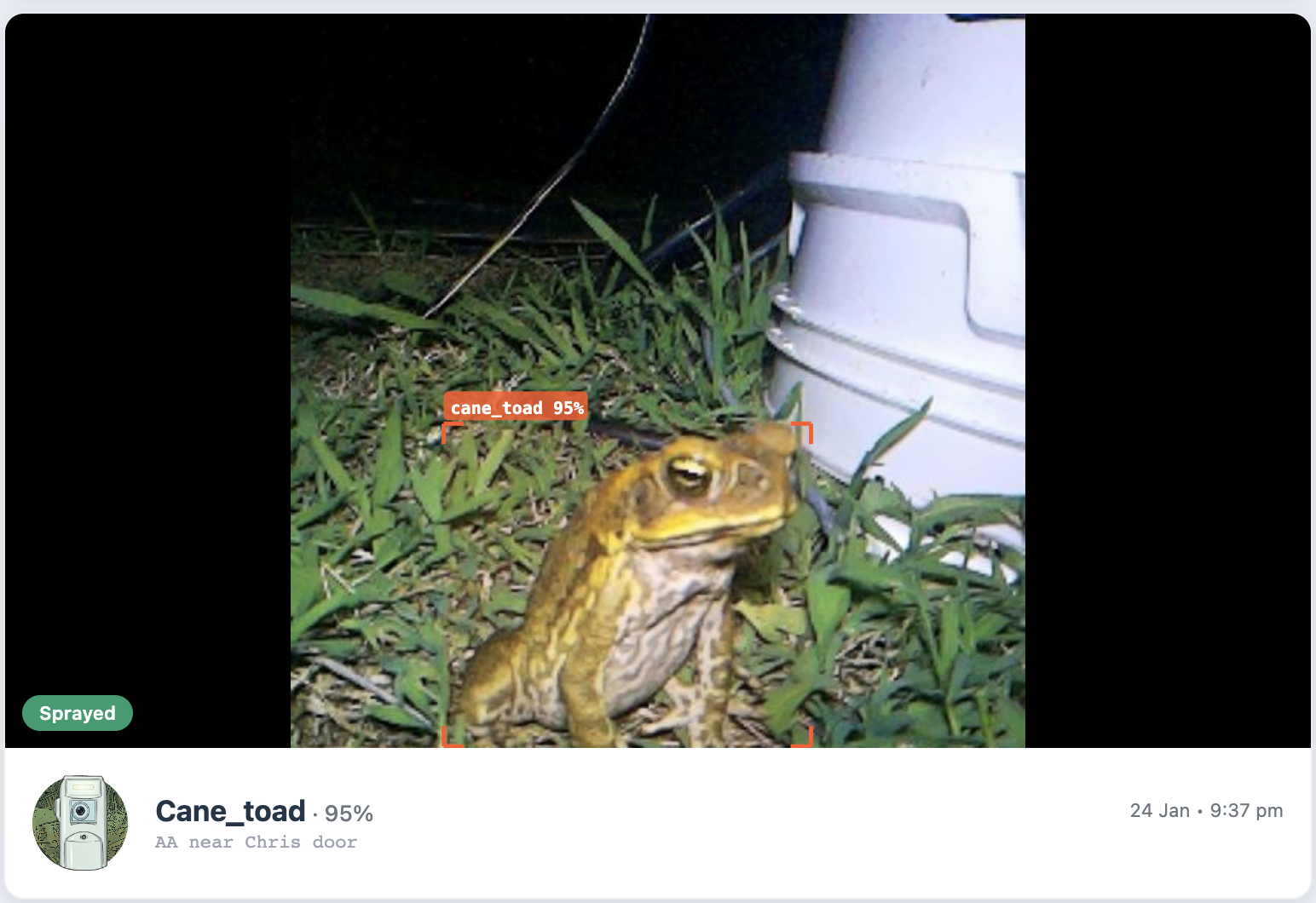
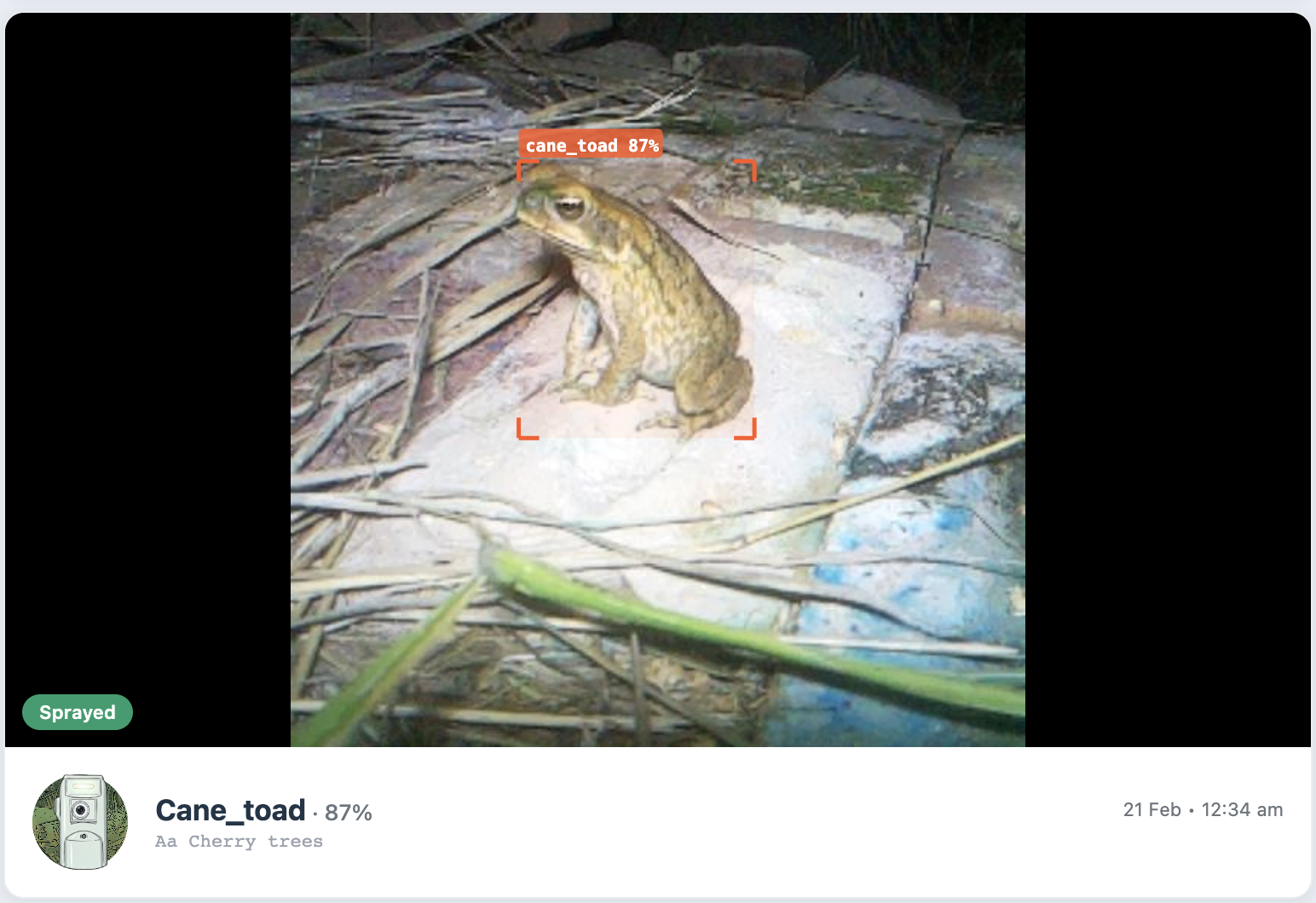
Each sighting shows:
- The detection image with a bounding box drawn around the detected toad
- Confidence score showing how certain the AI is (e.g. 95%, 87%)
- Status such as “Sprayed” indicating the device took action
- Device name and which ToadTurret made the detection
- Date and time of the detection
These images let you see exactly what is visiting your yard after dark. You can also spot false positives (maybe a beetle or a shadow that was flagged) and report them to improve the AI model.
Device Settings
The device settings screen gives you control over how your ToadTurret operates. This is where you fine-tune the system to suit your property.
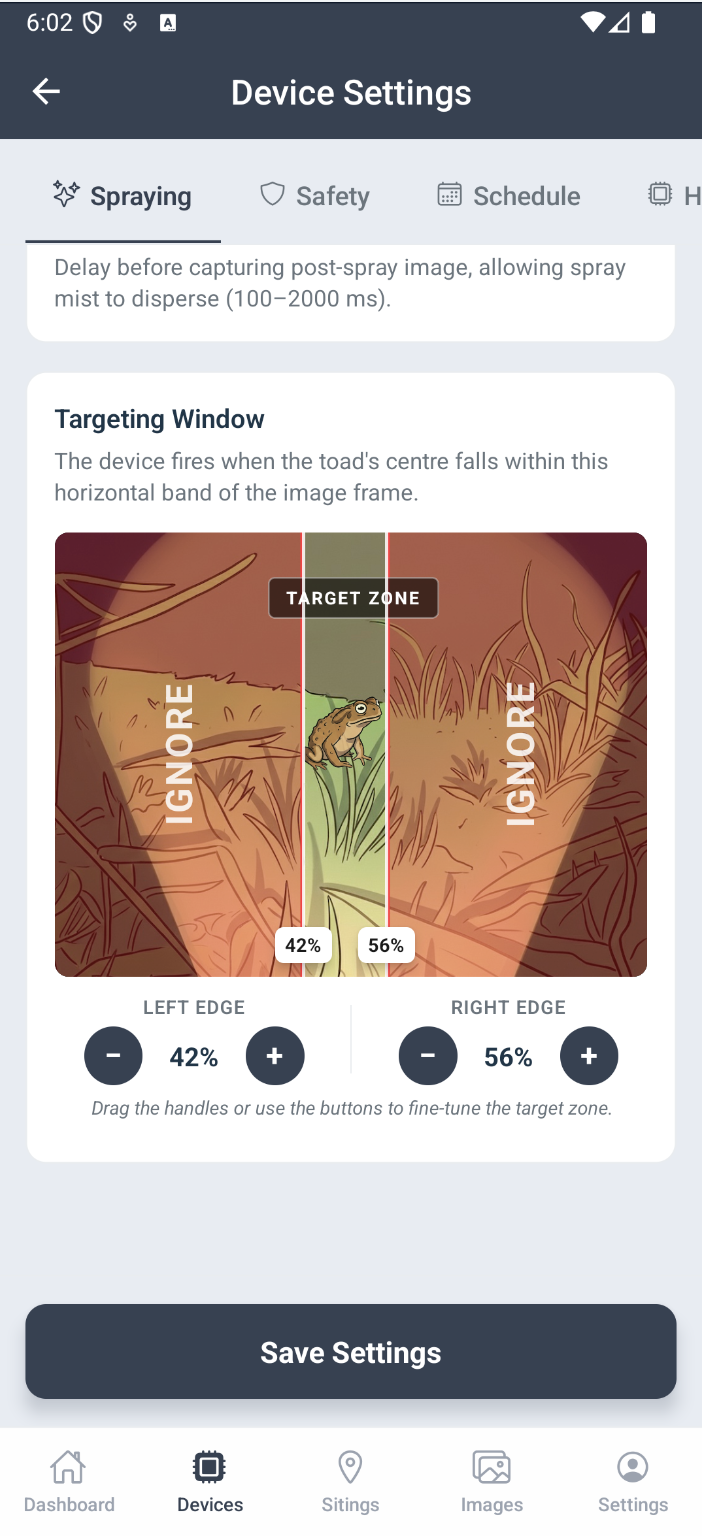
Settings are organised into tabs including:
- Spraying controls, including the targeting window. The targeting window defines the horizontal band within the camera’s view where the device will engage. You can adjust the left and right edges to narrow or widen the spray zone, which is useful for avoiding areas you do not want sprayed (like a garden bed or a wall).
- Safety settings for configuring safety pause behaviour
- Schedule settings for controlling when the device is active
Reporting Misidentifications
If you spot a detection image where the AI got it wrong (maybe it flagged a leaf, or missed something), you can report it directly from the dashboard. Reported images are reviewed by our team and fed back into the training data. This helps improve future versions of the AI model for everyone.
Push Notifications
When enabled, ToadOps sends push notifications to your phone when your device detects activity. You can configure what you get notified about so you are not flooded with alerts on busy nights.
Notifications are set up during the device setup wizard, but you can adjust them at any time in the app settings.
What Happens Without WiFi
If your device is not connected to WiFi, the core detection and spray functions still work independently using the on-device AI. What you lose without WiFi is:
- Detection images are not uploaded to the dashboard (they are stored locally on the device)
- The cloud-based second opinion on detections is not available
- You cannot see real-time device status remotely
- Software updates will not be delivered until the device reconnects
Once WiFi is restored, the device reconnects automatically and resumes uploading.
Want to Know More?
- Read our getting started guide for the full setup walkthrough
- Check the best practices guide for tips on getting the best results
- See the troubleshooting guide if you run into any issues
- Get in touch if you have questions