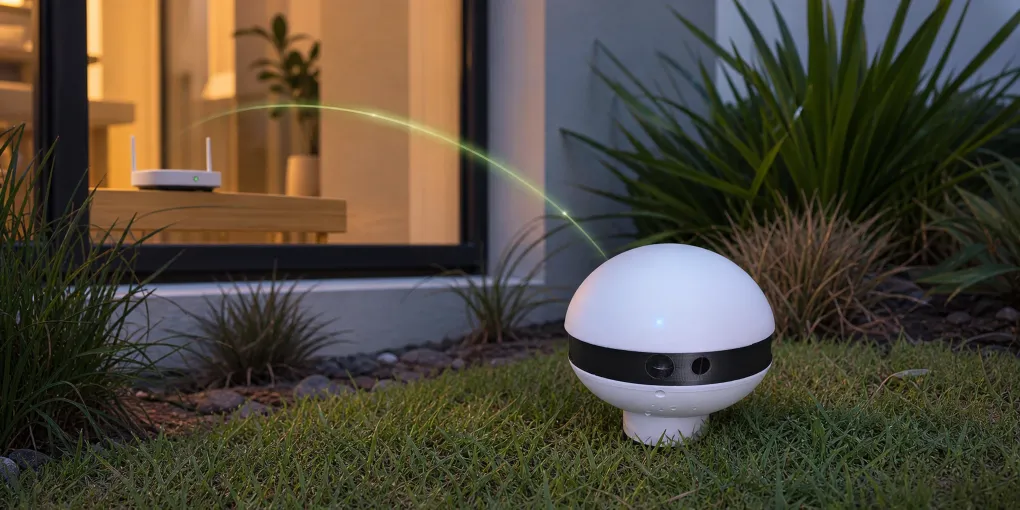
How to Connect ToadTurret to a 2.4GHz WiFi Network
ToadTurret connects to 2.4GHz WiFi only. It cannot connect to a 5GHz or 6GHz network.
That might sound technical, but in most homes there is nothing extra to buy. Most modern routers already provide a 2.4GHz network alongside their faster 5GHz network. You may only need to check that it is turned on.
The quick answer: Keep your 5GHz network switched on for your phones, computers, and other devices. ToadTurret just needs the router’s 2.4GHz band to be enabled. If your router uses one network name for both bands, try connecting to that network before changing any settings.
Why ToadTurret Uses 2.4GHz
The 2.4GHz band generally reaches further and passes through walls and windows better than 5GHz. That makes it a good fit for a device positioned outside in the garden.
A WiFi connection lets ToadTurret upload sighting images, use the second cloud-based verification layer, receive settings and software updates, and send notifications. Its core on-device detection and spray functions still operate without WiFi, but you will not have those connected features while it is offline.
Check What Your Router Is Already Broadcasting
Open the WiFi settings on your phone or computer and look at the available network names.
You will usually see one of these setups:
- Two similar network names: One might be called
HomeWiFiorHomeWiFi_2.4, while the other ends in5Gor5GHz. Select the 2.4GHz network for ToadTurret. - One network name only: Many routers combine 2.4GHz and 5GHz under the same name using a feature called band steering or smart connect. Try this network first. Because ToadTurret only supports 2.4GHz, the router will often connect it to the correct band automatically.
- Only a 5GHz or 6GHz network: The router’s 2.4GHz band may be disabled. Follow the steps below to turn it on.
Do not disable 5GHz for the rest of the house. Both bands can run at the same time.
How to Find Your Router Details
Start by checking the back or bottom of the router. The label often shows:
- The router manufacturer and model number
- The default WiFi network name and WiFi password
- A router address, such as
192.168.0.1,192.168.1.1,10.0.0.1, or a name such asmymodem - The router admin username and password
The WiFi password connects devices to your network. The router admin password opens the router settings. They are not always the same.
If the router label does not show an address, connect your phone or computer to your home WiFi and find the router or gateway address:
| Device | Where to look |
|---|---|
| iPhone or iPad | Settings → Wi-Fi → information button beside your network → Router |
| Android | Settings → Network & internet or Connections → WiFi → your connected network → Router or Gateway. The wording varies between phone brands. |
| Windows | Settings → Network & internet → Wi-Fi → your connected network or Hardware properties → IPv4 default gateway |
| Mac | System Settings → Wi-Fi → Details → TCP/IP → Router |
Enter that address into the address bar of a web browser while you are connected to your home network. You should see your router’s sign-in page.
If your internet provider supplied the router, their app or support website is another good place to look. Search for your provider and the exact model from the router label, followed by “enable 2.4GHz WiFi”. Use the provider’s or router manufacturer’s official instructions where possible. For example, Telstra Smart Modem owners can follow Telstra’s guide to accessing modem settings.
How to Enable the 2.4GHz Network
Every router is a little different, but the general process is:
- Sign in to the router settings using the details on its label, in your internet provider’s app, or in the router’s manual.
- Open a section called WiFi, Wireless, Network, or Advanced settings.
- Find the 2.4GHz settings and make sure the band and its network name, also called the SSID, are enabled.
- Leave the 5GHz band enabled as well.
- Save or apply the change. The router may restart, and your other devices may briefly disconnect.
If 2.4GHz and 5GHz share one network name, leave them combined and try connecting ToadTurret first. If setup still fails, look for an option called Split bands, Band steering, or Smart connect. Turning that option off lets you give the two bands separate names, such as:
HomeWiFi-2.4HomeWiFi-5
You can then select HomeWiFi-2.4 during ToadTurret setup. Some routers and mesh systems instead offer a temporary IoT device setup or 2.4GHz onboarding mode in their mobile app. Use that option if it is available.
Avoid pressing the small physical Reset button on the router. That usually performs a factory reset and can erase your internet and WiFi settings.
Connect ToadTurret
It is easiest to do the first connection close to your router:
- Power on ToadTurret.
- Open the ToadOps mobile app, or visit app.toadops.com.au on a Bluetooth-enabled computer.
- Choose Add Device and connect to your ToadTurret via Bluetooth.
- When asked for WiFi, select the 2.4GHz network and enter its WiFi password.
- Wait for the setup wizard to confirm that the device is online.
Once it has connected successfully, move ToadTurret to its outdoor position and check the dashboard again. A connection that works beside the router may still be too weak at the far end of the yard.
If It Still Will Not Connect
Work through this quick checklist:
- Confirm that the 2.4GHz band is enabled and broadcasting its network name.
- Re-enter the WiFi password carefully. It is case-sensitive.
- Move ToadTurret closer to the router while setting it up.
- Give the router a minute or two after saving any changes.
- Restart ToadTurret and try the setup again.
- If the router combines both bands, try its split-band or IoT setup option.
- If the device connects near the house but drops offline outside, consider a WiFi extender or mesh node closer to the yard.
If you cannot sign in to the router, contact your internet provider or the router manufacturer before resetting anything. They can confirm the correct login method for your exact model.
For the rest of the device setup, see our Getting Started guide. If the 2.4GHz network is working but ToadTurret still will not connect, try the Troubleshooting guide or get in touch and we will help you sort it out.